
Archive for the ‘Browsers’ Category


Managing my bookmarks on Firefox over various computers

Tuesday, November 25th, 2008

When you work on multiple computers as well as multiple platforms, the one thing that is a chore is keeping up with all of your bookmarks.

I’ve tried a variety of browsers and methods, and some have worked better than others. Firefox has become my mainstay of default browser, so I’ve gone through a few variations of what is possible with various add-ons and plugins you can get for it.

Let it be said that Google Browser Sync was one of the best plugins for bookmark sharing, period. Install it on your main computer, sync it, move to the next computer, install it there, and you basically had a mirrored setup. Sadly, Google killed the project when Firefox released version 3.0 of their browser, and I think there was a good reason for them doing so.

Simply put, you can do relatively the same thing with the Google Toolbar. It lacks the syncing aspect that made Google Sync very powerful, but you can install the toolbar on Internet Explorer as well. The management of your book marks is less intuitive, but it is nice when you are doing web development over various machines and browsers.

Recently, I discovered Foxmarks, another plugin for Firefox that replicates a lot of the functionality that I missed since the loss of Google Sync. For every bookmark you actually make inside of Firefox, whether it’s in the “Bookmarks” menu or in the “Bookmarks Toolbar”, those links will be synced to any other machine you have Foxmarks installed within Firefox, regardless if it’s Mac, Windows, or Linux. If you add or delete a bookmark, the same thing happens across the other installations.

I have to say that after using this service for over a month now, the functionality of it has been very pleasing. Even better is that Foxmarks currently has a beta version of their plugin in operation for Internet Explorer and Safari. I don’t have any experience with those versions, but the thought is very encouraging.

If you’ve been looking for a way to share bookmarks over multiple browsers or machines, then you have my recommendations over what works for me. And I have to say, it’s been working really well.
Checking out Firefox 3 beta RC3

Monday, March 3rd, 2008

In an effort to at least post something in about a week, I thought I would make a quick mention of some initial thoughts I had when I downloaded Firefox 3 beta 3. Now to get that in normal people speak, that would be version 3.0 of Firefox, but it’s still in the beta phase of development, meaning that it’s not ready for official, widespread release and/or use. The second 3 means that it’s third in a series of release candidates for the big day when Firefox 3 is finally here.

You still with me?

The first thing I noticed, on my Powerbook G4 with a 1GHz processor circa 2003, is the speed that this browser works. It’s fast. The current release of Firefox, 2.0.0.12, is rough on my laptop. I can only achieve half the speed of the latest beta by plugging in a hard wire connection, and that only makes me even more sad to the reality that this beautiful laptop is ending its life cycle, but that’s a whole other story.

Rebecca has been using it a bit more than I after I told her about how well it operated, but it starts and stops with the speed. There are some minor bugs that still need to be worked out. There are key commands for WordPress that don’t work in the beta release, but that’s less important than the numerous plugins that I rely on daily which need to be updated and ported into this new version. That will come in time, but certainly makes me hesitate to make the upgrade before I get all my tools lined up and readily available.

Phillip sent me a Twitter the other night when I mentioned this, asking if he should download it. I would say that it wouldn’t hurt if you are a multi-browser user. Firefox is my main workhorse, but I also bounce in and out of Safari and Camino. I expect to do the same with this beta release as well, so if you think you are along those lines, then go for it. Otherwise, hold off. This beta release (beta being the very important word here) isn’t quite ready for the big time.

Tips & Tools: Spyware removal software for Windows XP users

Sunday, November 25th, 2007

The main reason that I am making this post is for my sister-in-law’s mother, but I figure that it’s worth mentioning in a full out post. Since I’m back in the technical support realm of things in the world of broadcasting, I’ve gone back to my tricks of the trade when working in the Windows XP world, and this certainly works for those running Windows 2000 and ME.

No matter what websites you are or are not surfing while on a PC running Windows, spyware[wiki] lurks around every corner. You don’t have to download anything for it to find its way onto your machine, although that is one of numerous ways that it can get onto your machine. It can come from cookies, holes in the programming of your browser, or a variety of other ways that hackers are constantly trying to exploit.

When it starts getting painful to operate your computer and rebooting it just doesn’t fix the problem, try running the following two programs in conjunction with each other. They will scan and, hopefully, remove these malicious pieces of software from your computer. The best part is that they are completely free.

  • Spybot Search and Destroy
    If you are doing this for the first time, start with this program. Download and follow the directions. Don’t forget to download the latest virus definitions and immunize your computer against future problems when Spybot asks for it. A full scan with this program can take a while, and you might have to reboot your machine and cycle through with this program a few times before it can successfully eliminate any issues you might have.
  • Ad-Aware
    This is what I typically run second after already running a Spybot scan. When you first download Ad-Aware, don’t get confused between having to pay for the pro version of the software compared to the free version. Just cancel out of the window when it asks you to pay for the program. Once again, follow the directions and download the most up to date definitions so it knows what to look for and possibly remove from your computer. When you go to scan your computer, do the full scan, as this will look deep into your computer’s hard drive for anything that shouldn’t be there.

Once again, if this is your first time ever doing this on your computer, repeat this process a second time. I recommend this out of experience because it can save you from having to completely reinstall Windows onto your computer. However, if you still have problems, the issue might be too deep for this to be your solution.

In my time working in the I.T. realm of things, I can say that these problems typically come from those using Internet Explorer. There are points where you can’t get away from the browser, but if you want an extra line of defense from this happening, get Firefox and make that your default browser. It works extremely well, is less vulnerable to things like spyware, thrives in an open source community, has a strong user base, is very versatile, and is the browser that I use on both Mac and PC platforms. The learning curve isn’t that bad, but there are a variety of add-ons you can put into Firefox to enhance your use.

Just to give you a first hand account of how these tools have been effective for me, I ran into an issue with a machine where the user complained that it had become so sluggish that they couldn’t do anything with it, including shutting it down. Running Spybot, it found two issues and removed them. Never running Ad-Aware on the machine before, the full scan found 1,200 various files that were not supposed to be there. Repeated the process without finding anything a second time and turned the computer back over to the user. There haven’t been any issues since, but repeating the scans in the future will help keep the machine healthy. Well, at least until the next problem, such as spilling coffee in the keyboard, occurs.

I’m sure there might be other things out there that work well, so I invite readers to add them into the comments. And hopefully Carol will be able to fix the issues she was having with her PC.

Filed under: Browsers, Internet, Tips

I am all not for Snap previews

Friday, February 2nd, 2007

If there is anything more annoying to me when it comes to website browsing, it’s Snap previews. It’s completely a matter of preference, but I cannot help but express my disregard for something that is supposed to be helpful.

When I’m looking at a site, I don’t want to see a tiny preview in a pop-up bubble of the link that I think I might like to click on, from said site that I am already looking at, especially when it has a bunch of links on it. Maybe it comes from the fact that I get a lot of content from RSS feeds, not bothering with loading websites unless I find it necessary. However, if I want to view a web page, I want to see the whole thing. I don’t want to peek through the keyhole. I’d rather just kick the door down and go in to see what I can find.

Thankfully, BoingBoing has pointed to a great post about what you can do to stop this helpful service from functioning on your browser. Rock!

Speeding up Firefox

Wednesday, September 6th, 2006

When I used to do I.T. for WSUI, I pushed for people to use Firefox as their default browser on their PC. Fellow tech support monkeys can understand that for obvious reasons.

I just recalled this tip that I caught wind of about a year or so ago. This is a really great way to speed up Firefox, and it doesn’t require you to download anything to do it. This mostly applies to those folks on broadband, so if you’re on dial-up, this isn’t for you.

  1. Type “about:config” into the address bar and hit return. Scroll down and look for the following entries:
    • network.http.pipelining
    • network.http.proxy.pipelining
    • network.http.pipelining.maxrequests
  2. Normally the browser will make one request to a web page at a time. When you enable pipelining it will make several at once, which really speeds up page loading.
  3. Alter the entries as follows:
    • Set “network.http.pipelining” to “true
    • Set “network.http.proxy.pipelining” to “true
    • Set “network.http.pipelining.maxrequests” to some number like 30. This means it will make 30 requests at once.
  4. Lastly, right-click anywhere and select “New” -> “Integer“.
  5. Name it “nglayout.initialpaint.delay” and set its value to “0“. This value is the amount of time the browser waits before it acts on information it receives.
  6. Restart Firefox.  You can follow steps 1 through 5 to be sure that your changes saved correctly.
    • Note: You might have to make these settings changes everytime Firefox is updated.

This works for the Mac version, too. Logging into WordPress is a snap, and browsing just got a whole lot faster. Once again, another reason I’m a happy switcher to Firefox.

Firefox 2 beta 2 released today

Thursday, August 31st, 2006

Going along with my recent post about converting over to Firefox as my default browser[post], I thought I would also point out that the second beta of Firefox 2 was released today. The features noted in this Wired.com post makes me anxious for the final version. I’m not too keen on the idea of downloading and running this right now, plus not all extensions are fully compatible with this beta version.

There’s too much to detail about what you can expect from 2.0 when it is launched in its final form, so check out the release notes for more details there.

One thing I will say that I am excited about is inline spell checking! This was the one feature about Safari that I loved the most. Finally, we’ll see it on a Mozilla product.

Making a switch over to Firefox

Saturday, August 19th, 2006

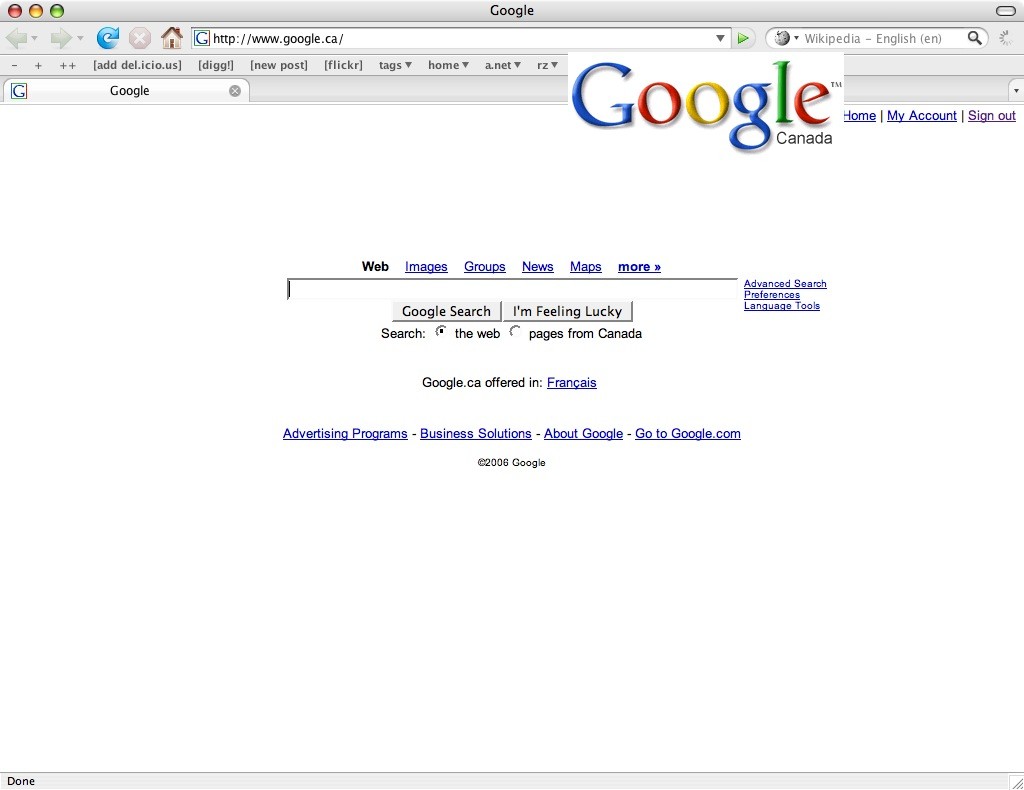
Screenshot of my Firefox setupBeing the Apple fan that I publicly am, I’ve also been very partial to Safari.  That changed the other day when I launched Firefox while just being curious about how it stacks up to my “usual” browser.

I really like Safari.  That being said, in the past few days, I am not longer using it as my default browser.  The element I really liked about Safari was the RSS feature.  After numerous, spinning beach balls(Apple users will know what I’m talking about), I grew tired of how it behaved.

It’s annoying and time wasting to have that happen.  RSS was made to make getting info more simple and quick.  On top of that, Safari does not fully support WordPress.  So for creating my posts, I ran Camino along side Safari in order to use the “quicktags” feature in WP.  You can’t use that in Safari, so posting with that browser reverts back to manually typing up HTML code as well as your text. Can you see the headache going on here?

I also experimented, briefly, with making Flock my standard browser, if not something to use in conjuntion with Safari and replacing Camino.  I can’t say that I was overly happy with its performance, RSS interface, and overall feel.  I still think that it’s a great browser, but the development needs to keep going on it until I would be comfortable using it full time.  Maybe it’s something to keep revisiting as the built-in blogging and photo sharing support is pretty cool.

That being said, I think I am 80% with being fully converted into using Firefox.  The ability of using plugins has already found me pretty happy.  Using Tab Mix Plus and Wizz RSS News Reader has me feeling even more efficient than I did with Safari.  Additionally, I’ve changed the theme to make it look more like Safari.  That might sound sad to some folks, but having it look like how I’m used to made the change all the more easier.

Pages load quicker than before, and I mean that by being more snappy.  Clicking on a RSS article has the page load in a few seconds.  And if I want to blog about something I read, I open a new tab and make a post.  Even publishing a podcast gets easier because if I need to search for info to add a link into the show notes, eveything is all in one.

These are just some preliminary thoughts about the switch.  I have to say that I’m pleased with how easy it was, but my experience with doing these things might be more than the average user.  For now, I’m sticking with Firefox.