Two screens are better than one

Thursday, May 31st, 2007 | 2 Comments »

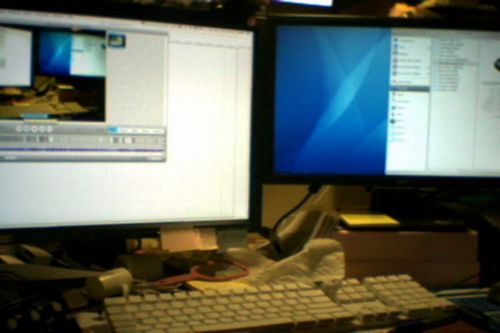
My dad had an epiphany while he was visiting us in Vancouver back in April. Instead of one really huge monitor, you can get a lot more out of having two. When I told him about having three, I think that kinda blew his mind.

Chris Pirillo, who apparently I am a lookalike of, posted about this today, so I sent it on to Dad. He replies, “I already have one.”

Dad’s Duel Monitor Setup

“There is no way I’ll go back to the single monitor on my work setup. It is too nice; too productive; too fun; and a new world all together.”

Designing electronics like he does, it makes a whole lot of sense, eh?

Why won’t the speakers work on my PowerBook?

Friday, February 16th, 2007 | No Comments »

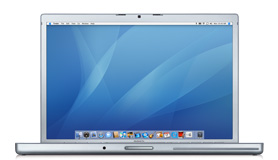
This has been a problem of mine for the past year. The internal speakers on my PowerBook G4 just stopped working one day, but the headphone jack still operates without a problem. There is the fact that this thing is nearly four years old and the first generation of the 17-inch models. You would think that they just broke and wouldn’t want to put out audio because its senior citizen status when it comes to the world of computers. It’s not the case, and long story short, it has to be a software problem.

I’ve done numerous things over the past few days. Actually, I’ve tried a few various times, mostly whenever I have the patience and courage to try some potential solutions. Still nothing works.

I’ve basically tried everything that I could find here with no success. You can even find a post there by yours truly, begging for answers.

My pursuit will continue, but I doubt that I’ll be successful. Dealing with a sinus thing over the past three days, I’ve given it a good try. I know, get something new. Wish it was that easy. This baby needs to last me just a little while longer.

Flaw in Mac OS X; proof-of-concept code exploit

Tuesday, November 21st, 2006 | No Comments »

Worth noting and passing on to other MacOS users.

A security researcher has published attack code for an unpatched flaw in Mac OS X, the latest vulnerability in the “Month of Kernel Bugs” campaign.

The proof-of-concept code exploits a security hole in the way Apple Computer’s operating system handles disk image files, the researcher wrote Monday on a blog devoted to the campaign, which promises to reveal details of a new flaw in low-level software every day this month.

“Mac OS X com.apple.AppleDiskImageController fails to properly handle corrupted DMG (disk image) image structures, leading to an exploitable memory corruption condition with potential kernel-mode arbitrary code execution by unprivileged users,” wrote the researcher, who goes by the initials “LMH.”

The vulnerability could be exploited remotely, as Apple’s Safari Web browser loads DMG files from external sources, such as one found while visiting an URL, LMH wrote. That could let an outsider compromise a system. [cnet]

To put it into simple terms, there is a risk, but you have to actively download a file from the Internet for anything “bad” to happen. Nothing happens from just having your computer connected to a network. I’m sure Apple will attempt to fix this in the very near future.

Just be smart with what you are doing. Don’t download anything you can’t be really sure of. If a website that you visit automatically has a file start downloading onto your computer, stop it as soon as you can. If it gets downloaded anyway, do not allow it to expand or activate. Cancel anything your browser asks, and do not double click on the file itself. Delete it as soon as possible.

This is the MacBook Pro that I was looking for

Tuesday, October 24th, 2006 | 1 Comment »

Apple MacBook Pro 15-inchActually, I’m really torn. I love my 17″ Powerbook G4, but the processor is getting closer and closer to the low end of things. I’m probably on borrowed time until the hard drive starts to give me fits, so if I’m going to replace the whole thing, then I’m going to stick with the notebook way of life.

Just today, Apple launched some new models of the MacBook Pro that I am very interested in getting my hands on. The big thing for me is FireWire[wiki] 800. Processor speed, graphics, and memory kind of come second. However, the specs on these suckers are looking sweet.

Apple today announced that its entire MacBook(TM) Pro line of notebooks now includes the new Intel Core 2 Duo processor and delivers performance that is up to 39 percent faster than the previous generation. All MacBook Pro models now offer double the memory and greater storage capacity than the previous generation, as well as a FireWire(R) 800 port for connecting to high-speed peripherals. [macrumors]

When you go with a laptop, your hard drive is never going to have enough space on it for you. As space gets cramped, much like on mine, you need to think external. At the same time, the speed of your hard drive is critical, and very rarely do you get anything above 5200 RPMs. Why? Heat and power consumption. It’s all correlational.

With the amount of audio editing that I like to do, I have to have my external, 200GB hard drive. FireWire 800 makes it really easy to make backups and copy files really quick like, but the best part is actually doing all my recording and editing to it. Before this, the fan on my Powerbook would spin quite a bit, not to mention programs hiccuping from time to time because the internal hard drive couldn’t be accessed quick enough. The software was outdoing the hardware, but life is better when you work on the external and allow the processor more room to breathe.

Now that FireWire 800 is apart of all MacBook Pro models, it has me thinking about moving away from the large screen screen world of Apple notebooks. I know that the 15″ is not that much smaller than the 17″, but it can start to matter when you think about simple portability. Bags and protective cases for large laptops are a bit of a specialty, not to mention that you can forget how big that laptop in your bag really is from time to time. The door can and will hit you on the way out if you forget that it’s there.

Speeding up Firefox

Wednesday, September 6th, 2006 | 2 Comments »

When I used to do I.T. for WSUI, I pushed for people to use Firefox as their default browser on their PC. Fellow tech support monkeys can understand that for obvious reasons.

I just recalled this tip that I caught wind of about a year or so ago. This is a really great way to speed up Firefox, and it doesn’t require you to download anything to do it. This mostly applies to those folks on broadband, so if you’re on dial-up, this isn’t for you.

  1. Type “about:config” into the address bar and hit return. Scroll down and look for the following entries:
    • network.http.pipelining
    • network.http.proxy.pipelining
    • network.http.pipelining.maxrequests
  2. Normally the browser will make one request to a web page at a time. When you enable pipelining it will make several at once, which really speeds up page loading.
  3. Alter the entries as follows:
    • Set “network.http.pipelining” to “true
    • Set “network.http.proxy.pipelining” to “true
    • Set “network.http.pipelining.maxrequests” to some number like 30. This means it will make 30 requests at once.
  4. Lastly, right-click anywhere and select “New” -> “Integer“.
  5. Name it “nglayout.initialpaint.delay” and set its value to “0“. This value is the amount of time the browser waits before it acts on information it receives.
  6. Restart Firefox.  You can follow steps 1 through 5 to be sure that your changes saved correctly.
    • Note: You might have to make these settings changes everytime Firefox is updated.

This works for the Mac version, too. Logging into WordPress is a snap, and browsing just got a whole lot faster. Once again, another reason I’m a happy switcher to Firefox.

Use a bookmark to resize your browser window

Monday, August 21st, 2006 | No Comments »

I found this tip via Macworld a while ago, but it was meant for use in Safari. However, in making my switch to Firefox, this was a feature that made the jump all the more interesting because it works in this browser as well. Here’s how it breaks down from Macworld.

Launch Safari (or your favorite browser) and create a new bookmark. Most browsers will require that you bookmark a specific site. In Safari, open a site and then choose Bookmarks: Add Bookmark. Give the bookmark a name that will help you remember the screen size, such as 800×600 or 1024×768. Next, edit the address of the bookmark—in Safari, go to Bookmarks: Show All Bookmarks and navigate to your newly created bookmark. Change the Address portion of the bookmark to:

javascript:self .moveTo(0,0);self.resizeTo(800,600);

Open any page in Safari and select the bookmark. You’ll see that page in an 800-by-600-pixel browser window. You can then duplicate this bookmark and create other sizes as needed; just change the name and the relevant code. When you’re done, move your new bookmarks to a convenient location; then click on them when you want to test your pages at different resolutions. [macworld]

I like to have three of these bookmarks in my toolbar. From small, medium, to large, it gets very useful. I’ve even gone as far as making them slightly button-like, naming them “-”, “+”, and “++”. You can minimize and maximize windows all you want, but to make it quick and simple, just hit your bookmark and you’re done.

This might not be too handy for those folks out there that don’t have a lot of real estate on their monitor. If you run a monitor at the screen size of 1024-by-768, then you might not see the advantage. I can’t be sure if this works in the world of PC’s, but it stands to reason that it should. It’s great for previewing how websites you are working on look, but I just like it for the simple reason of keeping everything on my screen in a more controlled state of chaos.

Hacking a MacBook via Wi-Fi

Wednesday, August 2nd, 2006 | No Comments »

Attention MacBook owners: you might want to pay attention to this.

LAS VEGAS–Flaws in the software that runs wireless-networking hardware could let an attacker break into a PC over Wi-Fi, security researchers warned Wednesday.

An attacker could gain complete control over a laptop by sending malformed network traffic to a vulnerable computer, David Maynor, a senior researcher at security service provider SecureWorks, said in a presentation at the Black Hat security event here.

Maynor, along with researcher Johnny Cache, showed a video of a successful attack on a MacBook, made by Apple Computer. However, the attack is possible also on other computers, both laptops and desktops, and not just MacBooks, the researchers said. [cnet]

Of course, this isn’t just limited to MacBooks, but the idea of Apple products being safe from hackers is not as true as the commercials may lead on. The article continues to go on to say that this isn’t a wide-spread issue, but it is something to be concerned about. The important thing is for developers to take this into consideration and cut it off before these vulnerabilities become easy to exploit.

Still feel uneasy about your machine getting hacked wirelessly? Here’s good advice from the article.

Consumers should be streetwise when using their laptop by not connecting to networks they aren’t sure they can trust and by disabling the wireless radio when it is not needed, Maynor said. “There is no need to run out and rip your wireless card out of your laptop, but you should take precautions,” he said. [cnet]

The other thing to note is that this comes from flaws within drivers. These are easy to remedy through updates. It would be a good idea to be paying attention over the next few months to see if there are warnings and updates issued for the stuff you are using.

Getting bit by not managing my data

Tuesday, July 25th, 2006 | No Comments »

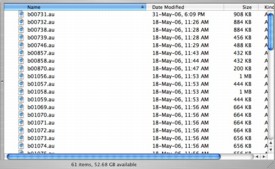
So...  much...  audio...The last few days, I’ve found my mind swimming through the issue of managing the data that rests on my laptop and external hard drive. This goes beyond the basic backing up gigs of junk in the event of catastrophe. I’m pretty good about staying on top of such things.

What I’m talking about is the simplicity of keeping track of everything, where it is, and how much space it’s taking up. I have so much audio sitting around, it’s getting nuts. It doesn’t help that I come from the radio mentality of not wanting to delete anything.

Back at WSUI, we archived so much onto CDs, it’s not funny. Stacks and stacks of blank CDRs would turn into piles of archived programs and interviews. You do it for the sake of history and yourself, creating evidence that you were once on the radio and hopefully good at it. Of course, those piles, no matter if it was your stuff or not, would be disowned when it came storing them. There’s probably still boxes and boxes of stuff waiting for some part-time, student employee to spend hours doing something along the lines of catergorizing everything into some sort of library.

With all of my podcast audio floating around, I’m starting to have flashbacks. Raw audio that I saved as a back up to go back to in case something went wrong during editing. Then the polished audio, edited and spliced up to my liking. Finally, exported clips of uncompressed audio. All of this eating up storage space.

You start a new project with the thought in your mind of keeping everything in check, only to work so hard on getting this new episode out that you forget about simple house cleaning. Yeah yeah, I’ll just be sure to take care of it next time… right? Wrong.

So here lies my pain of being a sucker and not managing my data better. Going through and finding the various pieces of audio, compressing them for storage, deleting the uncompressed stuff along with any program data that might have resulted from the numerous editing applications that I use, and repeat. It’s a slow, tedious process, but I put it off for far too long. Once it’s done, I’ll have gigs of storage space back and a DVD or two of archived audio.

This is a lesson to be learned for anyone that is podcasting, but can be applied to many situations. You never want to just delete a bunch of stuff to simply make some space. Archive it. You don’t know when it might become handy at some point in the future. At the same time, that’s history on your hard drive.

Apple Releases MacOS Update 10.4.6

Tuesday, April 4th, 2006 | No Comments »

This update seems to address a core of issues within the new Apple computer products with Intel processors. The other interesting note that comes with this release that came out yesterday, April 3rd, is the warnings posted along with it.

From Apple’s website:

Important: Please read before installing.

- If you use iSync, you should perform a full sync with your devices before installing this update. Mac OS X 10.4.6 Update includes a later version of iSync with several improvements. For more information and before-you-install steps, see iSync 2.2: Read before updating to Mac OS X 10.4.6 or later, or before first sync.

- With the Mac OS X 10.4.6 system software update, PowerPC-based Macs will restart twice, instead of once, after the initial installation.

- You may experience unexpected results if you have third-party system software modifications installed, or if you’ve modified the operating system through other means. (This does not apply to normal application software installation.)

- The installation process should not be interrupted. If a power outage or other interruption occurs during installation, use the standalone installer (see below) from Apple Downloads to update.

If issues occur during installation–for example, Software Update quits unexpectedly, please see this article.

Yikes. This seems to be a pretty hefty update that might catch some people by surprise. As always, back up your computer before you apply this upgrade. Get more info here on Apple’s website. And that’s just for upgrading from 10.4.5 to 10.4.6. Info on older systems can be found here, and this is the update method I prefer to use and really recommend.

Also, check out other resources on the web. MacInTouch is a great site to read user comments and feedback. The MacNN forums are a great, real time source as well.  Find out how upgrades are going for other users and get feedback from professionals who have the ability to test these things out before you find yourself completely and totally screwed.